Introduction
Nothing disrupts a streaming session faster than audio that doesn’t match the video on your screen. Whether you’re watching movies, live sports, documentaries, or TV shows, even a small delay between sound and picture can negatively affect the viewing experience.
If you use an OTT Player to access internet-based entertainment, audio sync problems may occasionally occur. These issues can be caused by network instability, device settings, software bugs, or hardware limitations. Fortunately, most audio synchronization problems can be fixed with a few simple adjustments.
In this guide, you’ll learn why audio sync issues happen, how to identify the root cause, and the most effective solutions to restore smooth playback.
What Are Audio Sync Problems?
Audio sync problems occur when sound and video are not played simultaneously.
Common examples include:
- Audio playing before the video
- Video appearing before the audio
- Delays that gradually increase during playback
- Sync issues affecting only certain channels or content
- Audio lag during live broadcasts
Even a delay of a few milliseconds can be noticeable, especially during conversations, sports events, and fast-moving scenes.
Why Audio Sync Problems Occur in an OTT Player
Several factors can contribute to synchronization issues.
Network Instability
Streaming depends on a continuous flow of data between servers and your device. If the connection becomes unstable, audio and video data may arrive at different times.
Common network-related causes include:
- Weak Wi-Fi signals
- High network latency
- Congested home networks
- Temporary internet interruptions
- Insufficient bandwidth
Understanding how network conditions affect streaming performance can help prevent many playback issues. For a deeper explanation, read our guide on what affects streaming quality.
Audio Processing Delays
Modern Smart TVs and sound systems often include advanced audio technologies designed to improve sound quality.
These features may include:
- Virtual surround sound
- AI audio enhancement
- Automatic volume leveling
- Sound optimization modes
While useful, they can sometimes introduce slight delays that cause audio to fall out of sync with video.
Bluetooth Devices
Bluetooth audio devices process sound wirelessly, which may create latency.
Examples include:
- Bluetooth headphones
- Wireless earbuds
- Soundbars
- Portable speakers
Although modern Bluetooth technology has improved significantly, small delays can still occur.
Device Performance Issues
Older streaming devices may struggle with modern video formats and higher resolutions.
When hardware becomes overloaded, it may:
- Process video more slowly than audio
- Experience playback lag
- Cause synchronization issues
This is particularly common when streaming 4K or high-bitrate content.
Software Bugs
Like any application, an OTT Player can occasionally experience software-related issues.
Outdated software may result in:
- Audio delays
- Playback glitches
- Buffering problems
- Compatibility conflicts
Regular updates often resolve these issues.
How to Diagnose the Problem
Before applying fixes, it’s important to identify where the problem originates.
Test Multiple Videos
Try different types of content:
- Movies
- TV series
- Live events
- On-demand content
If the issue only occurs with one specific video, the source content may be responsible.
Switch Devices
Play the same content on:
- Smart TV
- Smartphone
- Tablet
- Laptop
- Streaming device
If the problem disappears on another device, the issue is likely hardware or settings-related.
Test Other Streaming Applications
Using multiple streaming applications can help determine whether the problem is app-specific or system-wide.
Interestingly, performance issues that cause app crashes can sometimes contribute to audio and video synchronization errors. If you experience frequent app instability, check out our article on why streaming apps crash and how to prevent it.
Effective Solutions for Audio Sync Problems
Restart Everything
One of the simplest and most effective troubleshooting steps is restarting your equipment.
Restart:
- OTT Player
- Streaming device
- Smart TV
- Router and modem
This clears temporary glitches and refreshes system processes.
Update Your OTT Player
Always ensure your OTT Player is running the latest version.
Updates often include:
- Bug fixes
- Performance improvements
- Better media decoding
- Improved compatibility
Keeping applications updated can prevent many playback-related issues.
Update Device Firmware
In addition to updating the OTT Player, update:
- Smart TV firmware
- Streaming box software
- Mobile operating systems
- Audio device firmware
Manufacturers regularly release updates that improve audio and video handling.
Switch to a Wired Connection
Wi-Fi is convenient but can be affected by interference and signal fluctuations.
A wired Ethernet connection typically provides:
- Lower latency
- Greater stability
- Consistent bandwidth
- Improved streaming reliability
For viewers seeking the most stable streaming experience, Ethernet remains one of the best options.
Adjust Audio Delay Settings
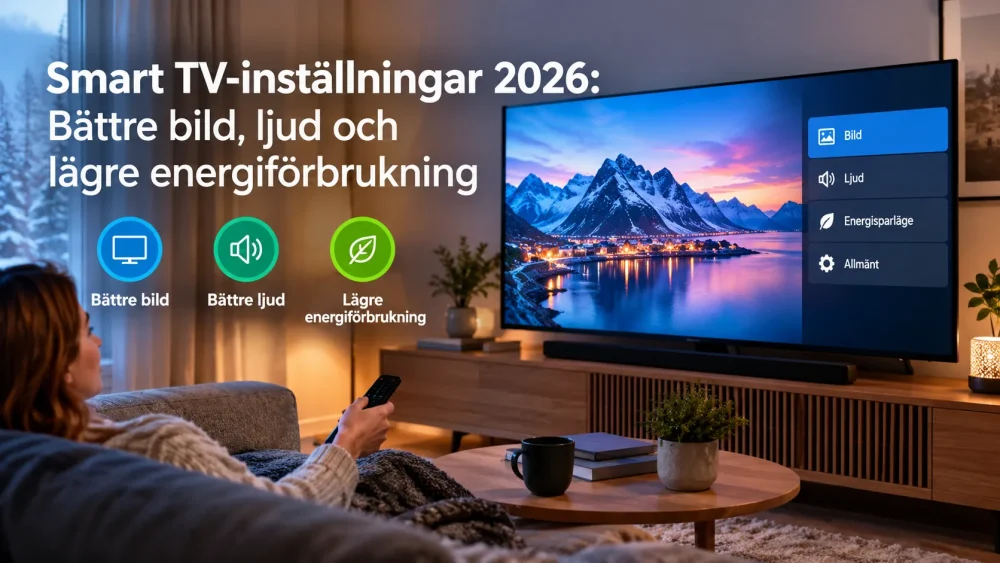
Most modern televisions and sound systems include synchronization controls.
Look for settings such as:
- Audio Delay
- AV Sync
- Lip Sync
- Audio Offset
Small adjustments can often restore perfect synchronization between audio and video.
Disable Audio Enhancements
Advanced audio processing can sometimes create delays.
Try disabling:
- Virtual surround sound
- AI audio enhancements
- Dynamic sound modes
- Automatic sound optimization
Test playback after each adjustment to determine whether the feature is causing the issue.
How Internet Performance Impacts an OTT Player
Network quality remains one of the most important factors affecting streaming performance.
Bandwidth
Insufficient bandwidth may cause:
- Buffering
- Reduced video quality
- Delayed playback
Latency
Latency measures the time it takes data to travel between servers and your device.
High latency can negatively affect:
- Live sports
- Real-time broadcasts
- Interactive streaming services
Packet Loss
Packet loss occurs when data fails to reach its destination.
This can result in:
- Playback interruptions
- Audio dropouts
- Synchronization problems
A stable internet connection helps minimize these issues.
Preventing Audio Sync Problems in the Future
Keep Software Updated
Regular updates improve:
- Stability
- Security
- Compatibility
- Streaming performance
Use Modern Hardware
Newer devices offer:
- Faster processors
- Better video decoding
- Improved network capabilities
- More efficient audio processing
Optimize Your Home Network
For better streaming performance:
- Position your router centrally
- Reduce wireless interference
- Upgrade outdated networking equipment
- Use dual-band or Wi-Fi 6 technology when available
Reduce Network Congestion
Streaming quality can suffer when many devices share the same network.
To improve performance:
- Limit large downloads during streaming
- Reduce unnecessary background activity
- Prioritize streaming devices through router settings
Best Practices for Maintaining OTT Player Performance
To enjoy a consistently smooth viewing experience:
- Keep your OTT Player updated
- Regularly restart networking equipment
- Use stable internet connections
- Monitor device performance
- Test settings after major software updates
- Upgrade aging hardware when necessary
These habits can significantly reduce the likelihood of synchronization issues.
Conclusion
Audio sync problems can be caused by a variety of factors, including network instability, Bluetooth latency, outdated software, device limitations, and audio processing settings. Fortunately, most issues can be resolved with simple troubleshooting steps.
By maintaining a stable internet connection, updating software regularly, optimizing device settings, and using reliable hardware, your OTT Player can deliver a smoother and more enjoyable streaming experience. Taking proactive steps today will help ensure audio and video remain perfectly synchronized throughout your viewing sessions in 2026 and beyond.
FAQs
Why is the audio ahead of the video in my OTT Player? This is often caused by TV audio processing, Bluetooth devices, or network-related delays.
Can internet issues cause audio sync problems? Yes. High latency, packet loss, and unstable connections can affect audio and video synchronization.
Should I use Wi-Fi or Ethernet for streaming? Ethernet generally provides a more stable connection and reduces the risk of playback issues.
How do I fix audio delay on my TV? Use Audio Delay, AV Sync, or Lip Sync settings available in your TV or sound system menu.
Does updating my OTT Player help? Yes. Software updates frequently include fixes for playback and synchronization issues.